
Gazette Builder can import batches of Entries from a ZIP package containing Markdown files and optional media.
Open:
GazetteBuilder → Import
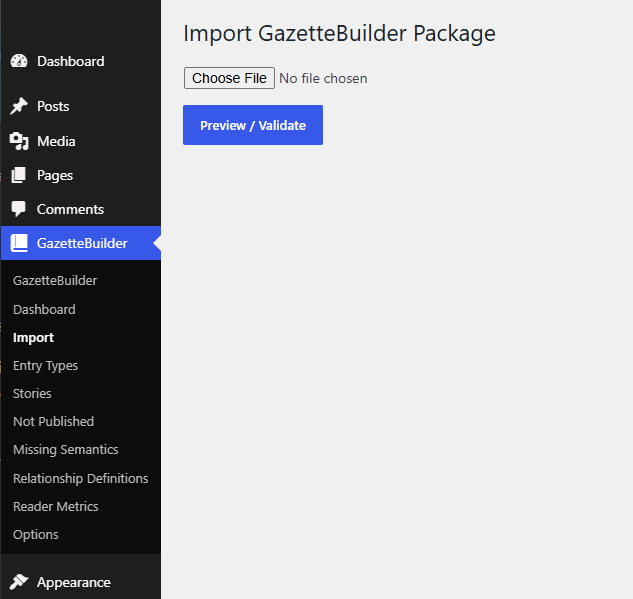
A package can carry the Entry article itself together with its GazetteBuilder metadata, semantic references, relationships, Story information, dates, and images.
This is useful when worldbuilding material is prepared outside WordPress or when a large number of related Entries need to be added together.
Before Building an Import Package
Before importing, configure the Gazette to recognize the classifications and relationships used by the package.
In particular:
- Create any required Entry Types under GazetteBuilder → Entry Types.
- Create any required Relationship Definitions under GazetteBuilder → Relationship Definitions.
- Make sure Relationship Names in the package use the same canonical names defined in GazetteBuilder.
For example, if an imported Entry contains:
Located in: Syrtis Major
then Located in should already be defined as a Relationship Definition with appropriate Source and Target Entry Types.
The import package should describe the Entries. It should not be relied upon to create the Gazette’s relationship vocabulary.
Package Structure
A Gazette Builder ZIP package uses an entries directory for Markdown Entry files and may include a media directory for images.
A typical package looks like:
gazette-package/
    manifest.yml
    entries/
        LOC-SYRTIS-MAJOR.md
        LOC-DORCHESTER-HOTEL.md
        CHAR-MAJOR-HARCOURT.md
    media/
        syrtis-major-map.jpg
        dorchester-hotel.jpg
The importer looks for Markdown files under:
entries/
and media files under:
media/
Subdirectories within media may also be used.
The current importer does not require the manifest.yml to create the Entries; the Entry Markdown files contain the information used for the actual import. A manifest may still be included to identify or describe the package.
One Markdown File Per Entry
Each Entry is stored as a .md file.
The file has two parts:
- YAML-style front matter containing Gazette Builder metadata.
- The Entry article written below it.
For example:
---
id: LOC-DORCHESTER-HOTEL
title: Dorchester Hotel
entry_kind: location
summary: A respectable hotel used by visitors and expedition parties in Syrtis Major.
featured_media: media/dorchester-hotel.jpg
relationships:
- "Located in: Syrtis Major"
- "In District: Hotel District"
---
The [[Dorchester Hotel]] is one of the principal colonial hotelsin [[Syrtis Major]].
The opening and closing lines containing three hyphens separate the metadata from the Entry article:
---
metadata here
---
article begins here
Required Front Matter
Each imported Entry requires:
id:
title:
entry_kind:
The Entry must also contain article content.
A minimal Entry therefore looks like:
---
id: LOC-SYRTIS-MAJOR
title: Syrtis Major
entry_kind: location
---
Syrtis Major is a major Martian canal city.
id
The stable GazetteBuilder Entry ID.
id: LOC-SYRTIS-MAJOR
IDs must be unique.
If the ZIP contains the same Entry ID more than once, validation stops the import.
An Entry ID that already exists in GazetteBuilder also prevents the package from being imported as a new Entry.
title
The reader-facing Entry title.
title: Syrtis Major
Titles containing punctuation can be quoted:
title: "EXP-01: Syrtis Major"
entry_kind
The Entry Type slug.
entry_kind: location
Use the Entry Type already configured in Gazette Builder.
Typical values might include:
location
character
organization
document
event
but the actual valid types are determined by the Entry Types configured on the site.
Optional Entry Metadata
The importer can also accept Gazette Builder metadata used by the Entry editor.
summary
A short Entry summary.
summary: A major Martian canal city and the principal urban center of the British colony.
campaign_date
The reader-facing date or date description.
campaign_date: "10 January 1889"
Campaign Date is descriptive and is separate from the machine-sortable Timeline Sort value.
timeline_sort
A sortable date/time used for chronological placement.
timeline_sort: "1889-01-10T09:00:00"
The value must be recognizable as a valid date/time value.
derived_from
Identifies another Entry from which this Entry is derived.
derived_from: LOC-SYRTIS-MAJOR
release_date
Sets GazetteBuilder’s Release Date.
release_date: "2026-09-01T08:00:00-04:00"
A future Release Date keeps an otherwise published Entry unavailable until that date is reached.
Leaving the field out or empty creates the normal undated-release behavior described in the Publication & Release documentation.
status
Controls the WordPress publication state of the imported Entry.
For example:
status: publish
If no status is supplied, the current importer defaults imported Entries to:
publish
Supported WordPress statuses in the current importer are:
publish
draft
pending
private
Story Metadata
Entries can be imported directly into a Story sequence.
For example:
story_id: EXP-01
sequence_position: 3
All Entries belonging to the same Story use the same story_id.
Each must have its own sequence position.
The Story landing Entry uses:
sequence_position: 0
If an imported Story has no position 0, validation reports a blocking error.
Duplicate positions within the same Story are also blocking errors.
Story landing Entries may also carry the Story display fields supported by Gazette Builder, including:
unit_label:
completion_mode:
continuing_text:
ending_text:
Story configuration is covered separately under Stories.
Semantic References in the Article
Semantic references use exactly the same syntax in imported Markdown as they do in the WordPress Entry editor:
[[Target Entry]]
For example:
The expedition established itself in [[Syrtis Major]]and took rooms at the [[Dorchester Hotel]].
Do not convert these into Markdown hyperlinks.
Gazette Builder needs the semantic markup itself:
[[Syrtis Major]]
rather than:
[Syrtis Major](some-wordpress-url)
During Preview / Validate, Gazette Builder examines semantic references and reports whether they currently resolve.
An unresolved semantic reference is not necessarily an error.
For example:
[[Hobo Club]]
may deliberately refer to an Entry that will be created later.
The preview reports such references as warnings rather than blocking the entire package.
Relationships
Relationships are declared in front matter as a list:
relationships:
  - "Located in: Syrtis Major"
  - "In District: Residency"
  - "On Street: Bedford Road"
Use one relationship per list item.
Each item follows the same format used in the Entry editor:
Relationship Name: Target Entry
The text before the colon must use the canonical Name configured in Gazette Builder’s Relationship Definitions.
The text after the colon is the target Entry.
Define Relationships Before Importing
Relationship Definitions should already exist before importing Entries that use them.
For example, before importing:
relationships:
  - "In District: Residency"
GazetteBuilder should already contain a Relationship Definition whose Name is:
In District
with suitable Source and Target Entry Types.
This keeps the import package and the Gazette’s controlled relationship vocabulary synchronized.
The Import Preview reports the relationship declarations it discovers so they can be inspected before the package is committed.
Featured Media
A Featured Image can be supplied through the featured_media field.
For example:
featured_media: media/dorchester-hotel.jpg
The referenced file must exist inside the ZIP’s media directory:
media/
    dorchester-hotel.jpg
During import, Gazette Builder transfers the file into the normal WordPress Media Library and assigns the resulting WordPress attachment as the Entry’s Featured Image.
The package path is therefore only an import-time reference.
The Entry does not continue depending on:
media/dorchester-hotel.jpg
after import. WordPress takes ownership of the imported media file.
Inline Images
Images can also appear inside the Entry article using normal Markdown image syntax:

For example:
The city's principal canal intersections are shown below.
The corresponding package structure is:
media/
    syrtis-major-map.jpg
Gazette Builder locates that image in the package, imports it into the WordPress Media Library, and replaces the package reference with the imported WordPress media URL in the Entry.
Image Text
The text inside the square brackets is used by the importer for the image’s descriptive text.
For example:

produces an imported image using:
Test map of Syrtis Major
as the image text and also presents that text as the figure caption.
If the square brackets are empty:

no caption is generated.
Media Paths
The clearest form is to use the full package-relative path:
media/syrtis-major-map.jpg
Gazette Builder normalizes media references and can also match an unambiguous file by filename, but using the complete media/... path is preferable because it makes the package explicit and avoids ambiguity.
Do not use external URLs as package media references.
Do not use paths that attempt to move outside the package, such as:
../images/map.jpg
Using the Same Image More Than Once
The same packaged media file can be referenced by more than one Entry or used as both Featured Media and inline content.
Gazette Builder maintains an import-time media cache so the same package asset can be reused rather than imported as a separate WordPress attachment every time it is encountered.
Missing Images Are Blocking Errors
Every referenced package image must actually be present.
If an Entry contains:
featured_media:
 media/missing-map.jpg
or:

and that file is not found in the ZIP, Preview / Validate reports the missing media as a blocking error.
The package must be corrected before import.
Complete Example
A Location Entry using most of the common import features might look like:
---
id: LOC-DORCHESTER-HOTEL
title: Dorchester Hotel
entry_kind: location
summary: A respectable colonial hotel used by visitors and expedition parties in Syrtis Major.
campaign_date: "January 1889"
timeline_sort: "1889-01-01T00:00:00"
release_date: "2026-08-24T20:00:00-04:00"
status: publish
featured_media: media/dorchester-hotel.jpg
relationships:
- "Located in: Syrtis Major"
- "In District: Hotel District"
---
The [[Dorchester Hotel]] serves travelers arriving in[[Syrtis Major]].
Its ZIP contains:
entries/
    LOC-DORCHESTER-HOTEL.md
media/
    dorchester-hotel.jpg
Before importing it, GazetteBuilder should already have:
Entry Type:Location
Relationship Definitions:
Located in
In District
Preview / Validate
To inspect a package:
- Open GazetteBuilder → Import.
- Select the ZIP file.
- Select Preview / Validate.
Gazette Builder examines the package without creating the Entries.
The current preview reports information including:
- number of Entries discovered;
- new Entries;
- duplicate Entry IDs;
- Entry IDs that already exist;
- missing required metadata;
- Entry validation errors;
- Story membership;
- missing Story position
0; - duplicate Story positions;
- missing media;
- semantic references that resolve;
- unresolved semantic references;
- ambiguous semantic references;
- relationship declarations discovered;
- blocking errors;
- warnings.
Blocking Errors and Warnings
A blocking error prevents the package from being imported.
Examples include:
- missing
id,title, orentry_kind; - duplicate Entry IDs;
- an Entry ID that already exists;
- invalid required Story structure;
- duplicate Story sequence positions;
- invalid Release Date or Timeline Sort values;
- missing referenced media.
A warning does not necessarily make the package invalid.
The most common example is an unresolved semantic reference to an Entry that has not yet been created.
Commit the Import
If Preview / Validate finds no blocking errors, GazetteBuilder displays the Import Entries step.
The current interface requires the validated ZIP file to be selected again before committing the import.
After re-selecting the package:
- Select Import Entries.
- Gazette Builder creates the Entries.
- Referenced media is imported into the WordPress Media Library.
- Inline image references are rewritten to the imported WordPress media.
- Featured Media is assigned.
- Entry metadata, Story data, semantic markup, and relationships are retained.
If an error occurs while creating the package, GazetteBuilder attempts to roll back Entries and media already created by that import rather than intentionally leaving a partial package behind.
A Good Import Workflow
For a larger import, the safest order is:
- Create the required Entry Types.
- Create the required Relationship Definitions.
- Build the Markdown Entry files.
- Add semantic references to the article text.
- Add relationship declarations to front matter.
- Add Story and chronology metadata where needed.
- Place all referenced images in
media/. - ZIP the package.
- Run Preview / Validate.
- Correct all blocking errors and review warnings.
- Re-run Preview / Validate until the package is clean.
- Commit the import.