
Semantic Relationships connect one GazetteBuilder Entry to another using the controlled vocabulary defined under:
GazetteBuilder → Relationship Definitions
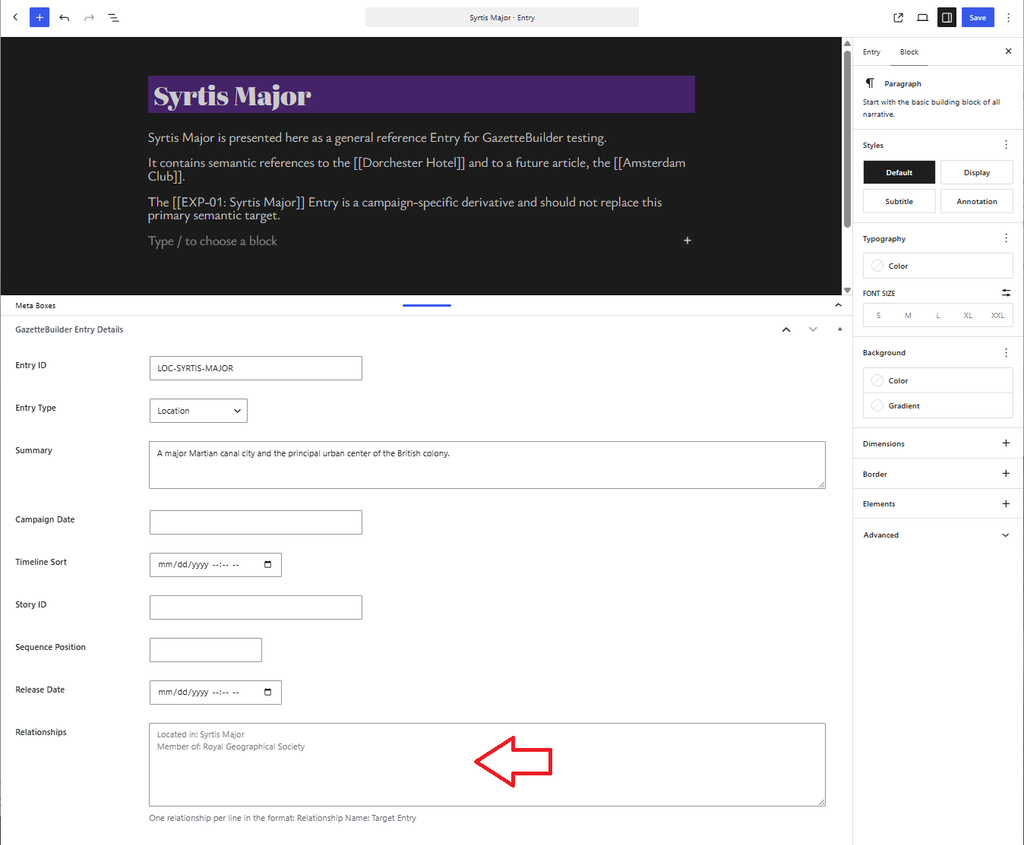
They are entered on the source Entry in the Relationships field and use the format:
Relationship Name: Target Entry
Enter one relationship per line.
For example:
Located in: Syrtis Major
In District: Residency
On Street: Bedford Road
Relationship Name
The text before the colon must match the Name of an existing Relationship Definition.
For example, if the Relationship Definition uses:
Name: Located in
then the Entry should use:
Located in: Syrtis Major
Relationship names are controlled vocabulary. Do not substitute alternate wording unless a separate Relationship Definition exists for that wording.
Target Entry
The text after the colon identifies the Entry the relationship points to.
For example:
Located in: Syrtis Major
means that the current Entry is related to the Entry named Syrtis Major through the Located in relationship.
The target must also be compatible with the Target Type configured in the Relationship Definition.
Source and Target Types
Relationship Definitions specify which Entry Types may appear on each side of the relationship.
For example:
Relationship: Located in
Source Type: Location
Target Type: Location
allows a Location Entry such as the Dorchester Hotel to declare:
Located in: Syrtis Major
If the source or target Entry Type does not match the definition, the relationship does not satisfy that Relationship Definition.
Entering Relationships on an Entry
Open or edit an Entry and locate the Relationships field in the GazetteBuilder Entry Details section.
Enter each declaration on its own line:
Located in: Syrtis Major
In District: Residency
On Street: Bedford Road
The Relationship Name comes from the Relationship Definition. The Target Entry is the Entry being referenced.
Unlike semantic references in the article text, relationships are entered in this dedicated metadata field rather than inside [[double brackets]].
Forward Presentation
A resolved relationship can be presented on the source Entry as part of its relationship or reference information.
For example, the Dorchester Hotel might declare:
Located in: Syrtis Major
In District: Hotel District
GazetteBuilder can then present those relationships on the Dorchester Hotel Entry with links to the resolved targets.
The relationship is stored once on the source Entry.
Reverse Presentation
The same relationship can also be used in the opposite direction.
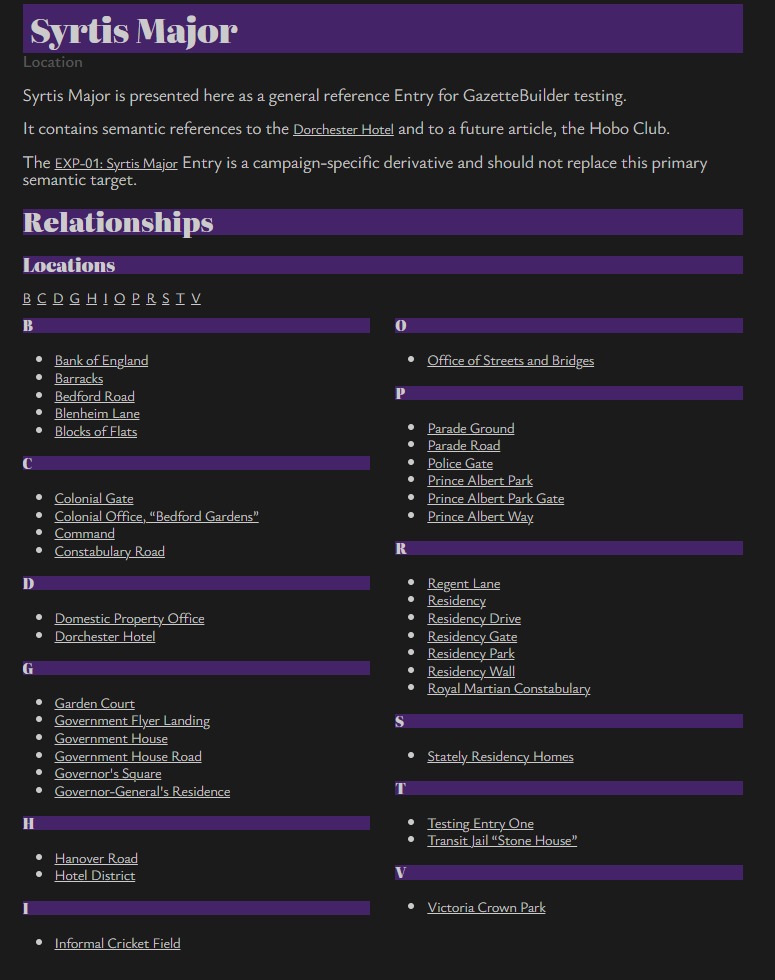
Each Relationship Definition includes an Inverse Label. GazetteBuilder can use that label to build a reverse listing on the Target Entry.
For example, the definition:
Name: Located in
Inverse Label: Locations
allows Entries such as:
Dorchester Hotel → Located in → Syrtis Major
Government House → Located in → Syrtis Major
Residency Park → Located in → Syrtis Major
to contribute automatically to a section on the Syrtis Major Entry such as:
Locations
- Dorchester Hotel
- Government House
- Residency Park
The Syrtis Major Entry does not need to maintain that list manually.
Different Relationships Can Produce Different Reverse Sections
The Inverse Label belongs to the Relationship Definition, so each kind of relationship can use wording appropriate to its meaning.
For example:
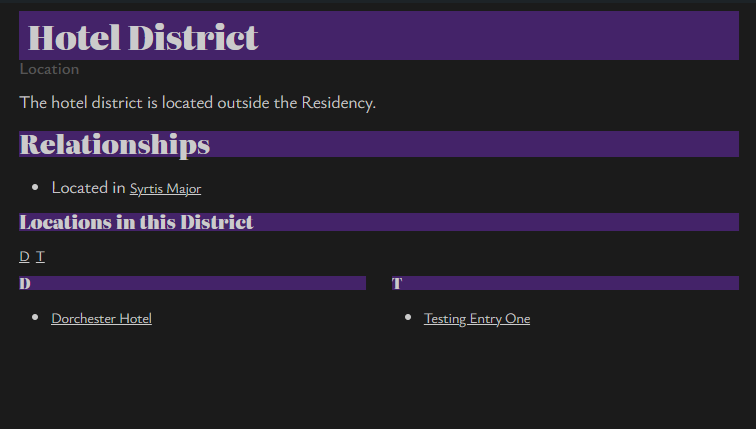
Name: In District
Inverse Label: Locations in this District
can generate:
Locations in this District
while:
Name: Located in
Inverse Label: Locations
can generate:
Locations
This lets Gazette Builder organize related Entries according to the meaning of the relationship rather than simply collecting every backlink into one list.
Relationship Definitions Control Valid Usage
Before entering a relationship, check the relevant Relationship Definition.
It determines:
- the canonical Relationship Name;
- the permitted Source Entry Type;
- the permitted Target Entry Type;
- the Inverse Label used for reverse presentation.
For example:
ID: in_district
Name: In District
Inverse Label: Locations in this District
Source Type: Location
Target Type: Location
supports a declaration such as:
In District: Residency
on a Location Entry when Residency is also a Location Entry.
Relationships and Semantic References Are Different
Both features connect Entries, but they serve different purposes.
A semantic reference appears in normal article content:
[[Syrtis Major]]
It means that the article refers to the Syrtis Major Entry.
A semantic relationship appears in the Relationships field:
Located in: Syrtis Major
It tells Gazette Builder what the connection between the two Entries means.
An Entry may use both.
For example, the prose might say:
The hotel stands near the colonial center of [[Syrtis Major]].
while its Relationships field contains:
Located in: Syrtis Major
The first provides an in-text semantic reference. The second provides structured relationship information that GazetteBuilder can use for forward and reverse presentation.
Editing Relationship Definitions
Because Entry relationships rely on the canonical Name defined under Relationship Definitions, changes to an existing definition can affect relationships already entered on Entries.
When changing or deleting a Relationship Definition, review the Entries that use it and update their relationship declarations where necessary.
Typical Workflow
To add a Semantic Relationship:
- Confirm that the required Relationship Definition exists.
- Confirm that the source Entry uses an allowed Source Type.
- Confirm that the target Entry uses an allowed Target Type.
- Open the source Entry.
- Add a line to the Relationships field using:
Relationship Name: Target Entry
- Save the Entry.
- View the Entry to confirm the forward relationship.
- View the Target Entry to confirm the expected inverse listing where applicable.
Semantic Relationships therefore let Gazette Builder use one structured declaration in two useful ways: to describe the connection on the source Entry and to organize related Entries automatically on the target Entry.