
The Entry Types page manages the kinds of Entries available in GazetteBuilder and controls whether each Entry Type has a public reader index.
Open:
GazetteBuilder → Entry Types
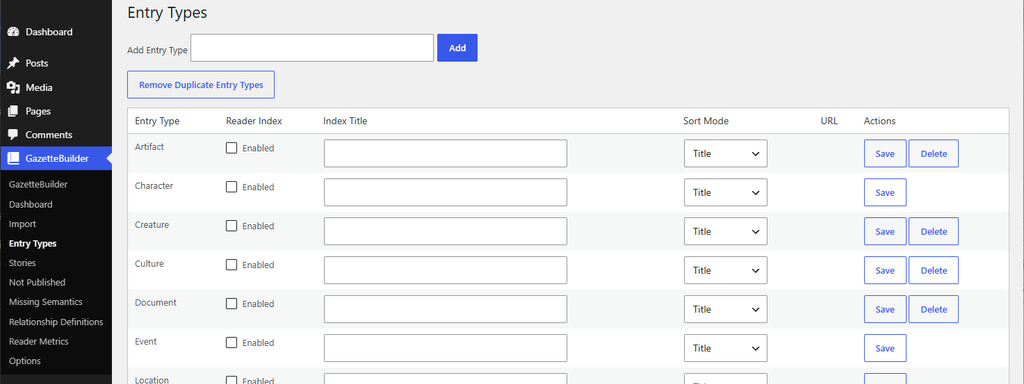
Add an Entry Type
At the top of the page, enter a new Entry Type name in the Add Entry Type field and select Add.
For example:
Planet
The new Entry Type is added to the table and can then be configured.
Entry Type Table
Each Entry Type appears as a row with the following settings:
- Entry Type
- Reader Index
- Index Title
- Sort Mode
- URL
- Actions
Reader Index
Enable Reader Index when you want GazetteBuilder to provide a public index for that Entry Type.
For example, enabling Reader Index for Character creates a reader-facing Character index containing eligible Character Entries.
Leave it disabled when that Entry Type does not need its own public index.
Index Title
The Index Title field controls the title shown on the public reader index.
This can match the Entry Type name or use a more descriptive reader-facing title.
For example:
Entry Type: CharacterIndex Title: Characters
or:
Entry Type: CharacterIndex Title: People of the Gazette
Sort Mode
The Sort Mode setting controls how Entries are ordered on the public index.
Two sort modes are available:
Title
Sorts Entries alphabetically by Entry title.
Release Date
Sorts Entries according to their Release Date.
Choose the mode that best fits how readers should browse that Entry Type.
URL
The URL column shows the public address for the Entry Type index when Reader Index is enabled.
Use this URL when linking readers directly to that index.
Save
After changing Reader Index, Index Title, or Sort Mode, select Save for that row.
Settings are saved individually for each Entry Type.
Delete
A Delete button appears only when no Entries currently use that Entry Type.
If the Delete button is missing, one or more Entries are still assigned to that type.
Before the Entry Type can be deleted, either:
- change those Entries to another Entry Type; or
- delete the Entries that use it.
Once no Entries remain assigned to the Entry Type, the Delete action becomes available.
Typical Workflow
To configure an Entry Type:
- Enter a new Entry Type, then click Add. The Entry Type if it does not already exist will be added to the table.
- Enable Reader Index if readers should have a public index for it.
- Enter an Index Title.
- Choose Title or Release Date as the Sort Mode.
- Select Save.
If an Entry Type is no longer needed, first make sure no Entries are assigned to it, then use Delete.
Remove Duplicate Entry Types
The Remove Duplicate Entry Types button is a cleanup utility for removing duplicate Entry Type definitions.
Use it if duplicate types have been created and need to be consolidated.