
Entries are the primary content objects managed by GazetteBuilder.
Open:
GazetteBuilder → Entries
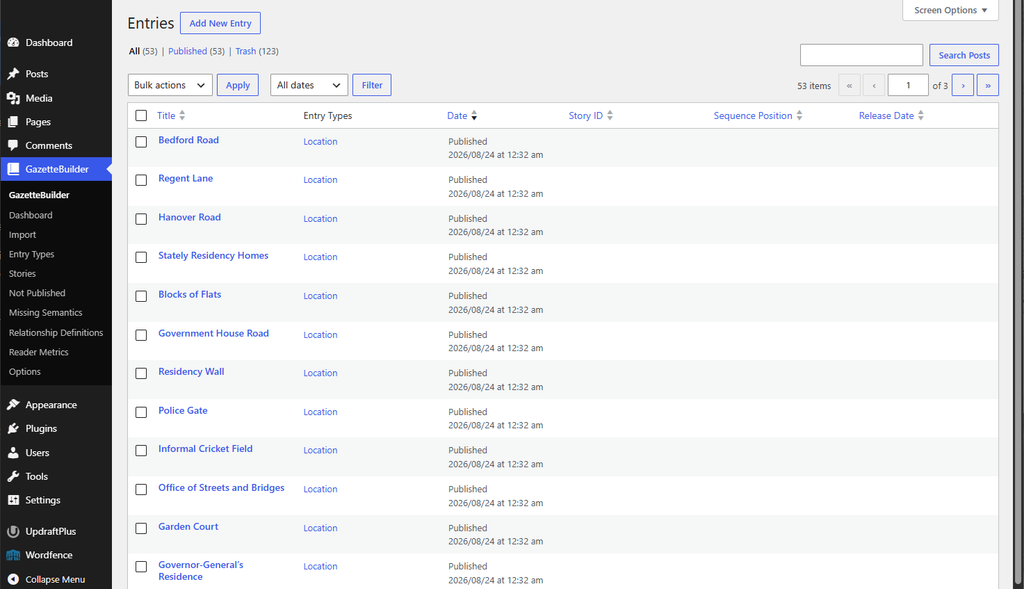
The Entries screen uses the familiar WordPress content list, with GazetteBuilder-specific information added to help manage worldbuilding content.
Entries List
The Entries screen shows existing GazetteBuilder Entries in a table.
Visible columns include:
- Title
- Entry Types
- Date
- Story ID
- Sequence Position
- Release Date
The standard WordPress controls are also available for searching, filtering, selecting Entries, performing bulk actions, and moving between pages of results.
Select an Entry title to edit it, or choose Add New Entry to create a new one.
Editing an Entry
GazetteBuilder uses the normal WordPress block editor for the Entry title and article content.
Write and format the main worldbuilding article here just as you would other WordPress content.
Below the editor, GazetteBuilder provides an Entry Details section containing the metadata used by its other functions.
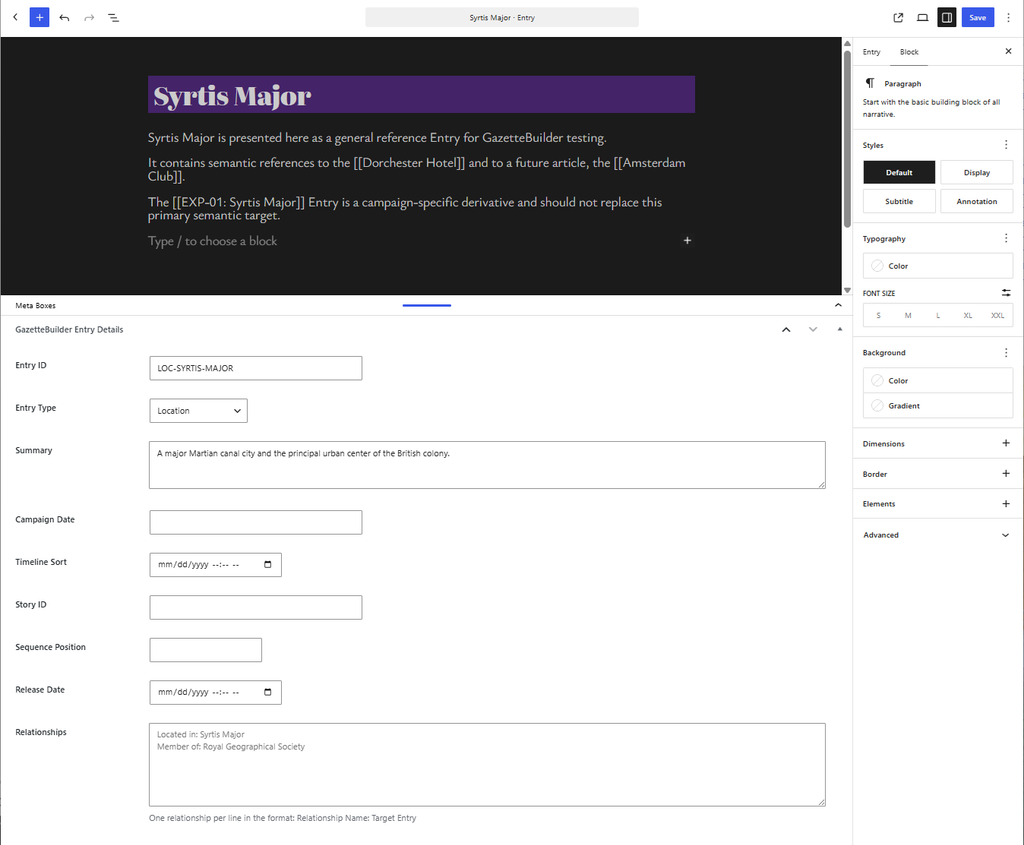
The visible Entry fields include:
Entry ID
A stable identifier for the Entry.
For example:
LOC-SYRTIS-MAJOR
The Entry ID identifies the GazetteBuilder object independently of its visible title.
Entry Type
Select the appropriate Entry Type from the available list.
For example:
Location
The available choices come from the Entry Types configured under GazetteBuilder → Entry Types.
Summary
A short description of the Entry.
For example:
A major Martian canal city and the principal urban center of the British colony.
The Summary can be used by GazetteBuilder when a shorter presentation of the Entry is needed.
Campaign Date
Enter the reader-facing date or chronological description associated with the Entry. This can be any description that takes on a date form, event era, time of day or other description desired for this date.
This field is separate from Timeline Sort.
Timeline Sort
Enter the sortable date and time used when GazetteBuilder needs to place the Entry chronologically in a timeline. This date is used to ensure dated entries are placed in the correct order on any timelines they are presented on.
The visible editor provides a date/time control for this field.
Story ID
When the Entry belongs to a Gazette Builder Story, enter the Story ID here.
Leave the field empty for Entries that are not part of a Story sequence.
Sequence Position
For Story Entries, enter the Entry’s position in the Story sequence.
Story configuration and sequence behavior are covered separately in the Stories documentation.
Release Date
Use Release Date when an otherwise published Entry should remain unavailable to readers until a later date and time. This date should be a real future date. Using a real date before the current date will release the article immediately and have no delay effect.
Leave the field empty when no delayed Gazette Builder release is required.
Publication and release behavior are covered in detail under Publication & Release.
Relationships
Semantic relationships can be entered in the Relationships field, one relationship per line.
The editor shows the required format:
Relationship Name: Target Entry
For example:
Located In: Syrtis Major
Member of: Royal Geographical Society
Relationship names must correspond to GazetteBuilder Relationship Definitions. Relationship configuration and reverse presentation are covered in the Semantic Relationships documentation.
Semantic References in Entry Content
Semantic references are entered directly into the normal Entry content.
Use double square brackets around the target Entry title:
[[Syrtis Major]]
For example, an Entry might contain:
The expedition established itself at the [[Dorchester Hotel]]shortly after reaching [[Syrtis Major]].
Gazette Builder resolves these references when the Entry is presented to readers. They are not ordinary WordPress hyperlinks stored in the article.
Do Not Add WordPress Links to Semantic References
The WordPress editor may notice the text inside a semantic reference and attempt to help by offering its normal link interface.
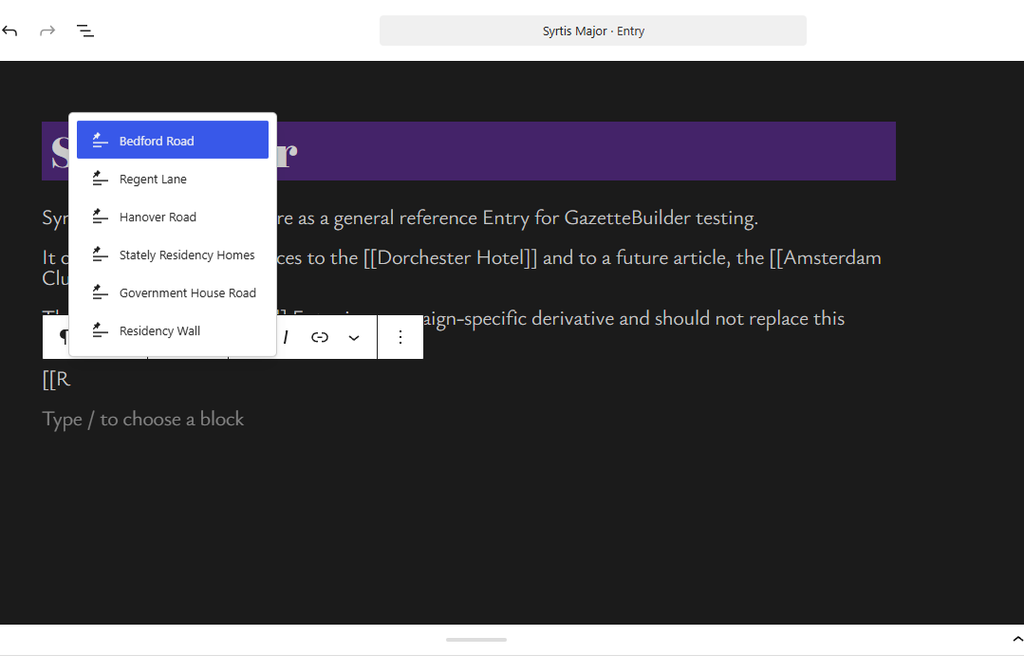
For example, while entering a semantic reference, WordPress may display suggestions for existing content such as:
Bedford Road
Regent Lane
Hanover Road
Do not select one of those suggestions and do not allow WordPress to turn the semantic reference into a normal hyperlink.
The Entry content should remain:
[[Syrtis Major]]
not a WordPress link wrapped around that text.
Gazette Builder needs the semantic markup itself so it can resolve the reference through its own Entry system.
A useful rule is:
Type the semantic reference, but do not use WordPress’s link tool on it.
If WordPress opens its link suggestion panel while you are typing, simply continue editing or dismiss the suggestion.
Why GazetteBuilder Handles the Link
A semantic reference identifies another Gazette Builder Entry by meaning rather than storing a fixed WordPress URL.
When the target is published and release-eligible, Gazette Builder can present the reference as a working link to that Entry.
If the target does not yet exist, the semantic reference can remain in the source content and be resolved later when the corresponding Entry becomes available.
For example:
[[Amsterdam Club]]
can be written before the Amsterdam Club Entry exists.
This is why the raw [[...]] notation should remain intact in the editor.
Saving the Entry
Use the normal WordPress Save or publication controls after editing the Entry content and GazetteBuilder metadata.
Before saving, check that:
- the Entry ID is correct;
- the appropriate Entry Type is selected;
- relevant metadata has been entered;
- semantic references remain in
[[Target Entry]]form; - WordPress has not converted semantic references into ordinary links;
- relationship declarations use the required
Relationship Name: Target Entryformat.